
When you look at a 3D model on a screen, you are looking through a virtual camera. That camera has settings, just like the camera in your phone. STLViewer lets you change two of them in one place, the Camera panel in the toolbar:
- Projection: should the model look the way your eyes see things (Perspective), or like a technical drawing (Orthographic)?
- Field of view: how wide the camera sees, from a narrow 15° to a very wide 120°.
This guide explains both ideas in plain words, shows where the controls are, and suggests which setting to use for which job. Everything works in your browser with STL, 3MF and PLY files, and you don't need an account.
Quick start
- Open your model on stlviewer.online.
- Click the Camera button in the toolbar (the video camera icon). On a phone it's in the ⋯ menu.
- Choose Perspective or Orthographic.
- In Perspective, drag the Field of view slider. Click Reset to 45° to go back to the default.
The rest of this guide explains what each setting does.
Perspective and orthographic: two ways to draw a model
To show a 3D model on a flat screen, the viewer has to "project" it, a bit like casting a shadow onto a wall. There are two common ways to do it.
Perspective works like your eyes or a photo. Things that are farther away look smaller, and parallel lines, such as the edges of a long part, seem to meet in the distance. It looks natural, which is why it is the default.
Orthographic works like a technical drawing. Every part of the model is drawn at the same scale, no matter how far it is from the camera. Parallel edges stay parallel, and two identical holes look identical even if one is at the back of the part.
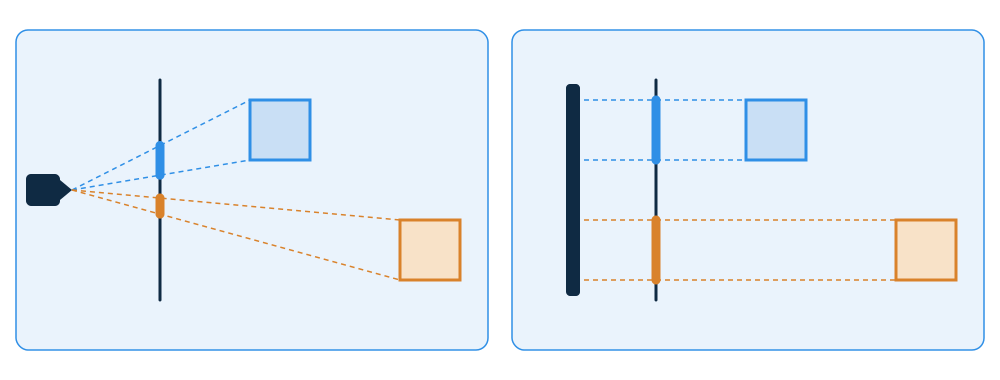
Neither one is "more correct". Perspective is better for getting a feel for the shape. Orthographic is better when you want to compare sizes and proportions by eye.
What is field of view?
Field of view (often shortened to FOV) is how wide the camera's view is, measured as an angle. You already know it from your phone: the 0.5× wide-angle lens has a large field of view, and the 3× telephoto lens has a small one.
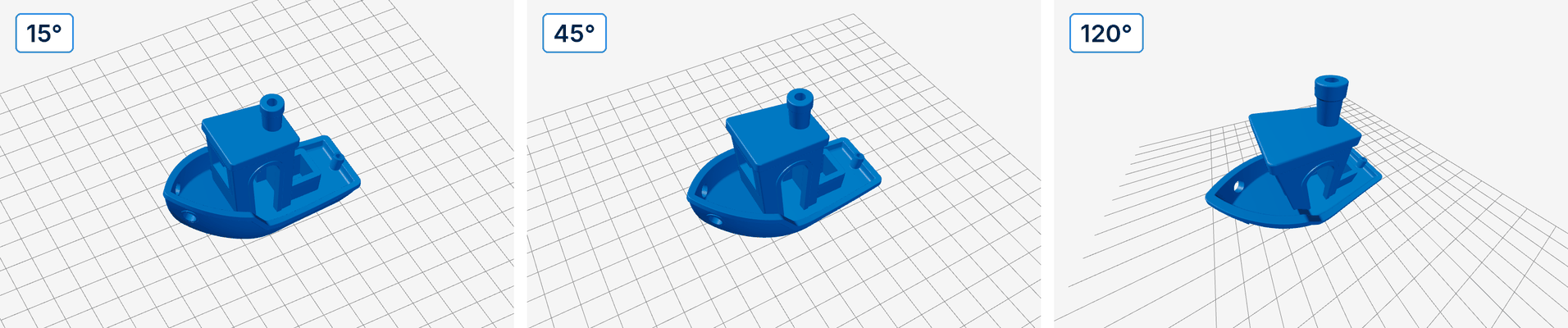
- A narrow field of view (for example 15° to 30°) makes the picture flatter. Perspective distortion almost disappears, and the model starts to look like a technical drawing while still having some depth.
- A wide field of view (for example 70° to 120°) makes depth dramatic. Parts close to the camera look much bigger than parts farther away.
The default in STLViewer is 45°, a natural-looking middle ground.
Why the model doesn't get bigger or smaller
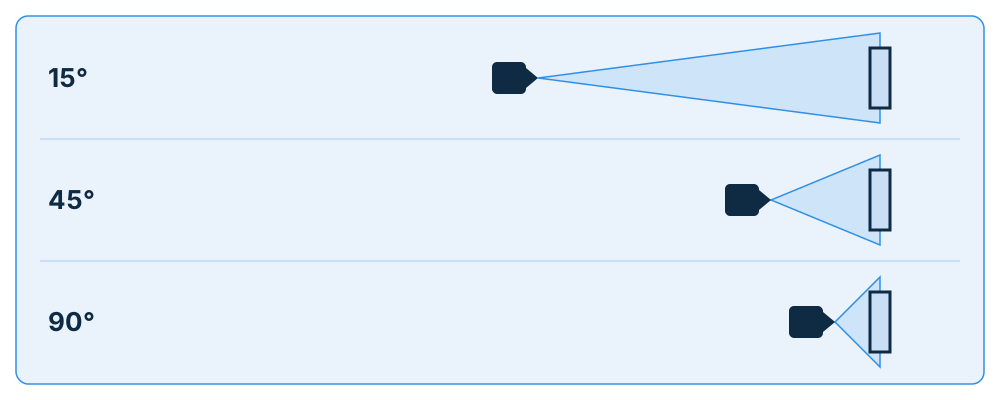
On a real camera, switching to a narrower lens also zooms in. That would be annoying in a viewer: every time you moved the slider, you would have to zoom back out to see the whole model.
So STLViewer moves the camera for you. When you narrow the angle, the camera steps back. When you widen it, the camera moves closer. The model stays about the same size on screen, and only the amount of perspective changes. Film makers use the same trick for a famous effect called the "dolly zoom".
Here is the same boat at three angles. Look at the grid under it: at 15° the grid lines stay almost parallel, and at 120° they fan out strongly.
Step 1: Open your model
Go to stlviewer.online and drag your STL, 3MF or PLY file onto the page. The model opens in the viewer right away. The file stays on your device: nothing is uploaded unless you later decide to share the model.
If the model is spinning, click Auto-rotate in the toolbar to stop it. Turning on Grid also helps, because the grid lines make the perspective easy to see.
Step 2: Open the Camera panel
Click the Camera button in the toolbar. It has a video camera icon and sits next to the Background button. A small panel opens below it.
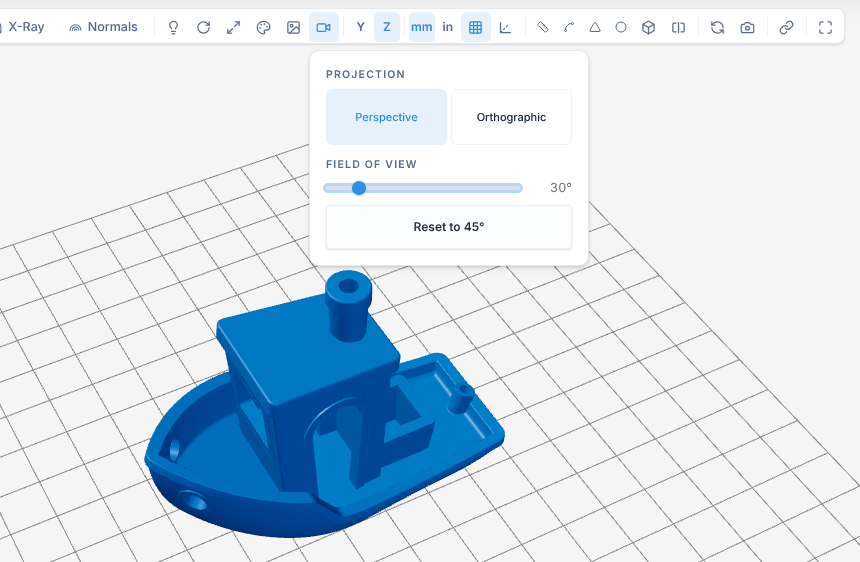
The Camera button is highlighted while you use a setting other than the default (Orthographic, or an angle other than 45°). That way you can always tell at a glance that the view has been changed.
Step 3: Choose a projection
Under Projection, click Perspective or Orthographic. The view switches straight away, and the camera keeps looking at the model from the same direction, so nothing jumps.
When Orthographic is on, the Field of view slider is greyed out and a short note explains why: an orthographic view has no perspective, so there is no angle to change. Your angle is kept, and it comes back when you switch to Perspective again.
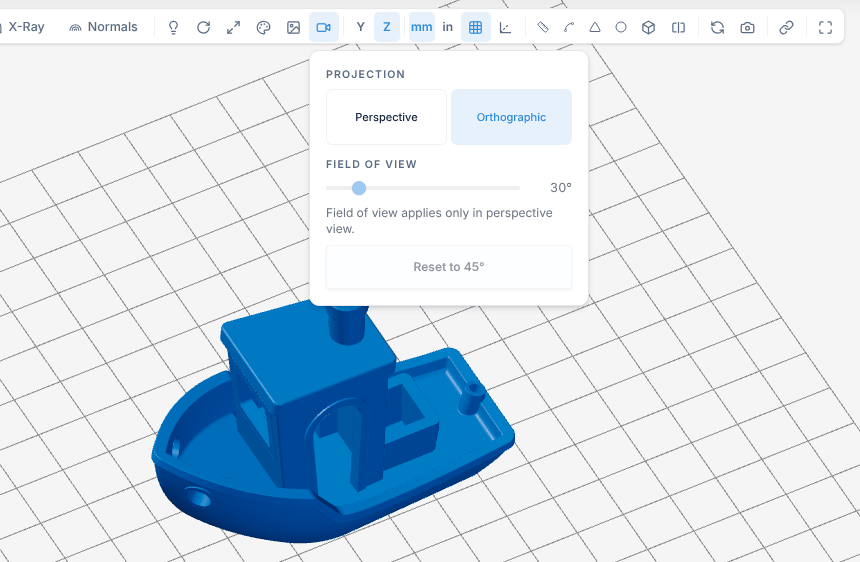
Step 4: Change the field of view
In Perspective, drag the Field of view slider. The number next to it shows the current angle, from 15° to 120°, and the model updates as you drag.
You can also use the keyboard. Press Tab until the slider is focused, then:
- Left and Right arrows change the angle by 1°.
- Home jumps to 15°, and End jumps to 120°.
Click Reset to 45° to go back to the default. The button is greyed out when the angle is already 45°.
A few things are good to know:
- Very wide angles stop at the model. At wide angles the camera would sometimes have to move inside your model to keep it the same size. Instead, it stops just outside the model, and from that point the model gets bigger as you keep widening the angle.
- Dragging back brings back your view. If you drag to a wide angle and then back to where you started, you get the same view you had before, as long as you didn't zoom or move the camera in between.
- Zoom still works as usual. Scroll or pinch to move closer or farther, at any angle.
On a phone or a narrow screen
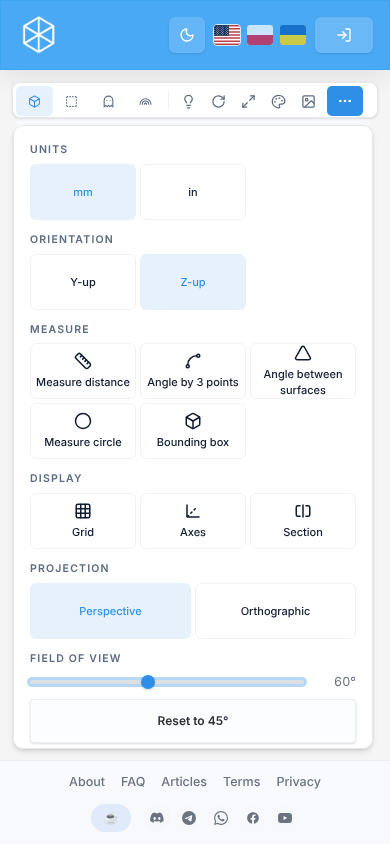
When the toolbar doesn't have room for every button, some of them move into the ⋯ menu at its right end. The Camera button is one of them, so on most phones you'll find Projection and Field of view in that menu, under the other display settings. They work exactly the same way there.
Which setting should I use?
There is no wrong answer, but these starting points work well:
| What you want to do | Try this |
|---|---|
| Look at a model in a natural way, or show it to someone | Perspective, 45° (the default) |
| Check proportions, or compare the size of similar features | Orthographic |
| Look straight at a flat face, for example the front of a box | Orthographic |
| Take a clean screenshot for instructions or a product page | Perspective, 20° to 30° |
| Show off depth, or look closely along a long part | Perspective, 70° to 90° |
If you're not sure, leave it at 45°.
How it works with the other tools
- Measurements stay correct. The angle changes how the model looks, not its real size. Distances, angles and circles measure the same at any setting, and in Orthographic too.
- Fit to view and Reset view frame the model again but keep your projection and angle. Fit fills the view at the current angle, so with a wide angle the model will look a bit smaller after Fit than it does at 45°.
- Save Image saves a PNG of exactly what you see, including the projection and the angle.
- Split view shows two panels side by side. While Sync views is on, changing the angle or the projection in the toolbar changes both panels. Turn sync off first if you want each panel to have its own setting, for example 15° on one side and 90° on the other.
What is saved and what isn't
The projection and the angle are viewing preferences for you, right now. They are not saved with the model:
- They stay as you set them while the page is open.
- After you reload the page, the viewer starts again in Perspective at 45°.
- Share links and embeds always open in Perspective at 45°, so everyone sees your model the same way at first.
- If you save the starting view of a model you've shared in Model settings, the camera position and framing are saved. Whoever opens the model sees that view at 45°, at the same size, whatever angle you were using when you saved it.
Frequently asked questions
What field of view should I use?
Start with the default, 45°. It looks natural for most models. Go lower, to about 20° to 30°, when you want a flatter, cleaner look with less distortion. Go higher, to about 70° to 90°, when you want depth to stand out. For comparing sizes and proportions, switch to Orthographic instead.
Why is the field of view slider greyed out?
The slider only works in Perspective. In Orthographic there is no perspective, so there is no angle to change. Open the Camera panel and choose Perspective, and the slider works again with the angle you had before.
Is changing the field of view the same as zooming?
No. Zooming moves the camera closer to the model or farther from it. Changing the field of view changes how wide the camera sees. STLViewer moves the camera along with the angle, so the model stays about the same size and only the amount of perspective changes.
Does the field of view change my model or my measurements?
No. It only changes how the model is drawn on your screen. Your file is never changed, and measurements give the same results at any angle and in Orthographic.
Will people I share my model with see my field of view?
No. The projection and the angle are your own viewing settings and are not saved with the model. Share links and embeds always open in Perspective at 45°.